

ONNX Model Quick Start
To help you quickly get started, this section introduces the basic workflow of the PTQ scheme using ResNet50 on the J6E platform as an example to illustrate the details.
The basic workflow is as follows:
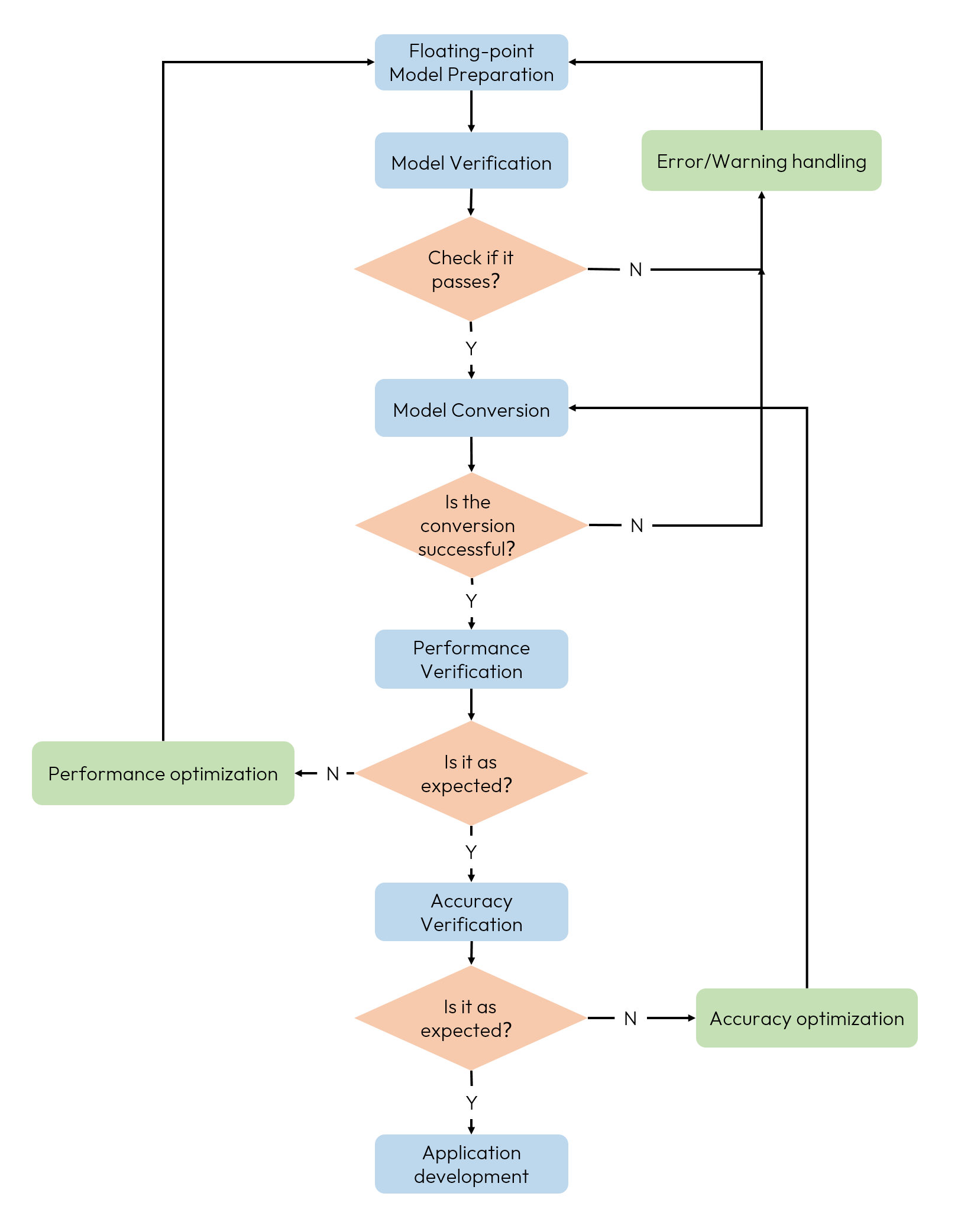
-
Before starting, make sure you have completed the environment installation on both dev PC and dev board by following the section Environment Deployment.
-
The following sections use the J6E platform as an example. Please replace the relevant platform-specific information according to your actual use case.
Floating-point Model Preparation
This section walks through the whole chain using ResNet50 as an example. The commands, configurations, and code shown here are reference forms used for explanation, so replace the names and parameters with those of your own model.
If you would rather run a complete chain end to end first and read this section against it, the OE package provides a ready-to-run PTQ conversion example under the samples/onnx_ptq/resnet50_mnist path. For details, see the section ResNet50 MNIST Quantization Example.
Refer to section Prepare Floating-point Model Preparation to prepare opset=10-19 onnx models in advance. The following table shows reference schemes for converting different frameworks to ONNX model formats.
| Training Framework | Reference Scheme |
| Pytorch | Export using the Official API. |
| Tensorflow | Covert using the onnx/tensorflow-onnx Tool of the ONNX community. |
| PaddlePaddle | Export using the Official API. |
| MXNet2Onnx | Export using the Official API. |
| Other frameworks | Covert using the Reference Scheme. |
Model Checking
After the floating-point model is ready, we recommend a quick checking of the model to ensure that it meets the support constraints of the computing platform. For the ResNet50 model in ONNX format, we can complete the model checking by typing the following command in the command line:
If your model is a multi-input model, you can refer to the following command:
The main parameters of the hb_compile tool are as follows, for more parameter descriptions, refer to section Model Checking.
| Parameter | Description |
--march | Used to specify the type of processor to be adapted, for J6B platform, please set to nash-b-lite or nash-b or nash-b-plus depending on the actual use case, for J6E platform, please set to nash-e, for J6M platform, please set to nash-m, for J6P platform, please set to nash-p, for S6P platform, please set to nash-starry-p. |
--proto | This parameter is only valid if model-type specifies Caffe, the value is the name of the prototxt file of the Caffe model. You do not need to specify it if your model is the ONNX model. |
--model | When model is a Caffe model, the value is the name of the caffemodel file of the Caffe model. When model is an ONNX model, the value is the ONNX model file name. |
Model checking is a standalone command that can be run directly from the command line or wrapped into a reusable script. The samples/onnx_ptq/resnet50_mnist example wraps this step in 01_check.sh. For how to run it, see the section ResNet50 MNIST Quantization Example.
If the model checking fails, confirm the error messages and modification suggestions according to the hb_compile.log file printed on the terminal or generated under the current path,
please refer to section Model Checking for more instructions.
Model Conversion
After the model checking passes, you can use the hb_compile tool to covert the model, refer to the following command:
Among them, resnet50_config.yaml is the configuration file corresponding to the model conversion, for details please refer to section Configuration File Template.
In addition, the model quantization of the PTQ scheme also depends on a certain number of pre-processed samples for calibration, which is described in section Pre-processing Calibration Data.
YAML Configuration File
The YAML configuration file contains 4 required parameter groups (model_parameters, input_parameters, calibration_parameters, compiler_parameters).
Each parameter group contains both required and optional parameters (optional parameters are hidden by default), you can refer to section Specific Parameter Information for specific requirements and filling methods.
For ONNX model, you should configure the onnx_model parameter, instead of configuring the caffe_model and prototxt parameters in the model_parameters parameter group.
-
The
input_type_rtandinput_type_trainparameters in theinput_parametersparameter group are used to specify the data type (e.g., NV12) that the model will receive when it is actually deployed on the board and the data type (e.g., RGB) for its own training, respectively.When the two data types are inconsistent, the conversion tool automatically inserts a BPU-accelerated preprocessing node in the frontend of the model to complete the corresponding color space conversion.
Meanwhile, the
mean_value,scale_valueandstd_valueparameters in this parameter group can also be used to configure the data normalization operation of the image input model, which will be integrated into the preprocessing node for BPU acceleration by the conversion tool after configuration.The formula for data normalization is as follows:
-
The
cal_data_dirparameter in thecalibration_parametersparameter group needs to be configured with the path of the preprocessed calibration data folder, refer to the section Pre-processing Calibration Data for the descriptions of the preprocessing method.
If the input of your model is non-image data such as feature maps, radar point cloud features, or spectrum data,
input_type_rt and input_type_train need to be set to featuremap at the same time. In this case the conversion tool
will not insert a color space conversion node at the front end of the model, and the normalization needs to be done on the Python side instead.
For the specific configuration method, see the section ResNet50 MNIST Quantization Example.
Pre-processing Calibration Data
If you are currently only concerned with model performance, you do not need to configure cal_data_dir parameter in the yaml and skip this subsection.
The tool will perform pseudo calibration to facilitate quick verification.
The calibration data of the PTQ scheme is generally screened from the training set or verification set of about 100 (can be appropriately increased or decreased) typical data, and should avoid very rare and unusual samples, such as solid color images, images without any detection or classification targets, etc.
The filtered calibration data should also needs to be preprocessed in the same way as that before the model inference, and after processing, the data type (input_type_train), layout (input_layout_train) and size (input_shape) should stay the same as the original model.
For the preprocessing of calibration data, Horizon provides a set of image processing transformers in horizon_tc_ui, with which you can directly compose the pre-processing flow you need. Take the ResNet50 model as an example, the calibration_transformers function below contains the pre-processing transformers for its calibration data, and the processed calibration data is consistent with its YAML configuration file, that is:
-
input_type_train : 'rgb'
-
input_layout_train : 'NCHW'
Where the transformers are all defined in the horizon_tc_ui.data.transformer module, please refer to section Image Processing Transformer. You can choose to modify and extend them as needed.
After writing the above pre-processing flow into a script and executing it, each piece of calibration data is saved as a npy file, and the directory holding them is the one pointed to by cal_data_dir in the YAML configuration file. The samples/onnx_ptq/resnet50_mnist example wraps this step in 02_preprocess.sh. For how to run it, see the section ResNet50 MNIST Quantization Example.
If you choose to write your own python code to pre-process the calibration data, you can use the numpy.save command to save it as a npy file,
which will be read by the toolchain calibration based on the numpy.load command.
Model Conversion
After preparing the calibration data and YAML configuration file, you can complete the entire process of model parsing, graph optimization, calibration, quantization, and compilation conversion in one command.
For a detailed explanation of the internal process, please refer to section Model Conversion Interpretation.
After conversion, the following outputs will be saved under the working_dir path specified by the YAML file.
For details, refer to section Conversion Output.
If during model conversion there exists a situation of removing nodes at the input/output, the *_quantized_removed_model.bc will also be saved. In this scenario, we recommend you to use this HBIR model to compare with the final generated hbm model if you need to do consistency comparison later.
Fast Performance Verification
For the xxx.hbm model file generated by the conversion, Horizon supports both first estimating the static performance of the BPU part of the model on the dev PC first, and providing an executable tool on the board to quickly evaluate the dynamic performance without any coding.
For more detailed descriptions and performance tuning recommendations, refer to sections Model Performance Evaluation and Model Performance Optimization.
Static Performance Evaluation
As described in section Model Conversion, after model conversion, HTML and JSON files containing static performance evaluation information for the model will be generated under the working_dir path.
But the HTML file is more readable. The following is the HTML file generated by the ResNet50 model conversion, where:
-
The modelSummary and coreSummary tabs provide the estimated BPU performance metrics of the model.
-
The Temporal Statistics tab provides the bandwidth usage of the model during the inference time of one frame.
-
The Layer Details tab provides the computation amount, computation time, data handling time and the active time period of the compiled layer (does not represent the execution time of the layer, usually multiple layers alternate/execute in parallel) of each layer of BPU operators.
-
The Timeline tab provides the predicted time consumption of the instruction set within the inference time of one frame of the model and the information of the corresponding computing units.
For detailed descriptions of these metrics, please refer to the Metric Interpretation of Simulation Performance Evaluation section.
Dynamic Performance Evaluation
Once the static performance of the model meets expectations, we can further evaluate the dynamic performance of the model on the board, and the reference method is as follows:
-
Make sure you have completed the environment deployment of the dev board according to section Environment Deployment.
-
Copy the
xxx.hbmmodel generated by the conversion to any path in the/userdatafolder of the dev board. -
Use the
hrt_model_exec perftool to quickly evaluate the time consumption and frame rate of the model.
The main parameters of the hrt_model_exec tool are described as follows,
refer to the section hrt_model_exec Tool Introduction for more instructions:
| Parameter | Type | Description |
| model_file | string | [Required] Model file path |
| core_id | string | [Optional] Used to specify the BPU operation core, defaults to 0. When specifying multiple cores, separate them with commas, such as "1,2". |
| thread_num | int | [Optional] Number of threads to run the program, optional range [1,32], defaults to 1. |
| frame_count | int | [Optional] Total number of frames the model runs, defaults to 200. |
| profile_path | string | [Optional] Statistical tool log generation path, run to generate profiler.log and profiler.csv, analyze op time and scheduling time consumption. |
-
If you can't find the
hrt_model_exectool on the board side, you can run theinstall_linux.shor theinstall_qnx.shor theinstall_starry.shscript(depending on your actual environment) under thepackage/boardpath in the OE package again. -
When evaluating Latency, you can specify
thread_numas 1 for single-threaded serial reasoning. -
When evaluating FPS, you usually use multi-threaded concurrent reasoning to fill up BPU resources, so you can configure
core_idto 0 andthread_numto be multi-threaded. -
When the model input is dynamic, please fill in the
input_valid_shapeandinput_strideparameters according to the actual input. -
If you configure the
profile_pathparameter, the program needs to run normally before theprofiler.loglog file and theprofiler.csvfile will be generated, please do not use theCtrl+Ccommand to interrupt the program.
When the dynamic performance of the model does not meet expectations, refer to the section Model Performance Optimization for performance tuning.
Accuracy Verification
Once the performance of the model has been verified as expected, subsequent accuracy verification can be performed. Please first ensure that you have prepared the relevant evaluation datasets and mounted them in a Docker container.
As described in the section Model Conversion, the model conversion generates two quantized models, xxx_quantized_model.bc and xxx.hbm,
and the their outputs are kept numerically consistent.
You can also use the hb_verifier tool in the dev PC environment for consistency verification, the reference command is as follows,
refer to section The hb_verifier Tool for detailed descriptions:
Compared to xxx.hbm, Horizon recommends prioritizing the quantization accuracy of the xxx_quantized_model.bc in the Python environment on the dev PC as it is much easier and faster,
refer to the section Development Machine Python Environment Verification.
xxx.hbm is evaluated on the board side based on C++ code, refer to the section Development Board C++ Environment Verification.
For more detailed accuracy verification and optimization recommendations, refer to the sections Model Accuracy Evaluation and PTQ Model Accuracy Optimization.
Development Machine Python Environment Verification
The single inference and verification set accuracy evaluation of the quantized model can likewise be wrapped into scripts.
In the samples/onnx_ptq/resnet50_mnist example these correspond to the two scripts 04_inference.sh and 05_evaluate.sh. The reference commands are as follows:
Before running the dataset accuracy evaluation, please confirm that the dataset path in the evaluation script has been changed to the actual path inside the container. For details, see the section ResNet50 MNIST Quantization Example.
Both scripts complete the inference through the HBRuntime interface provided by horizon_tc_ui.
Taking single-picture inference as an example, the usage logic of main interfaces in the code is as follows:
The preprocessing operations of the infer_image_preprocess function are consistent with those described in the section Pre-processing Calibration Data.
Compared to the calibration_transformers function, there is an additional process of transforming the data to input_type_rt (for parameter descriptions, see the section Yaml Configuration File).
The data preparation for HBIR model inference (including input_type_rt to input_type_train color conversion, mean/scale processing, etc.) will be done internally, so there is no need to do additional external normalization and other processing.
The specific code is as follows:
Development Board C++ Environment Verification
On the development board side, Horizon provides the unify compute platform (UCP for short) to help you quickly complete the deployment of models, and provide related samples.
The OE package provides a basic sample of model deployment in the following path to facilitate you to learn how to use the Model Inference API interface of UCP. For details on the sample, refer to the section Basic Sample User Guide.
Note that before deploying the model, you can obtain the model required for on-board deployment from the samples/model_zoo/runtime directory based on the target platform.
Among them, the main.cc file under the samples/ucp_tutorial/dnn/code/00_quick_start/resnet_nv12/src/ directory provides the complete flow code of the resnet50 model from preparing data to model inference,
and then execution of post-processing to produce classification results.
The full link sample from camera input can be found in samples/ucp_tutorial/all-round .
The main code logic in main.cc includes the following 6 steps. For instructions on the API interfaces involved in the code,
refer to the section BPU SDK API DOC.
-
Load the model and get the model handle.
-
Prepare the model input and output tensor and apply the corresponding BPU memory space.
-
Read the model input data and put it into the requested input tensor.
-
Infer the model and get the model output.
-
Implement the model post-processing based on the data in the output tensor.
-
Release the related resources.
The sample running is referenced as follows:
Application Development
When you are satisfied with the performance and accuracy of the model, you can then continue with the development of the upper-level application by referring to the steps described in the section Embedded Application Development.