

Deployment Consistency Analysis
From qat.pt / qat model to the final deployed hbm, the model still goes through multiple stages such as export, convert, compile, and deployment adaptation.
If any of these stages introduces additional error, you may observe a situation where the training-side results are normal but the deployment-side results do not meet expectations.
This chapter mainly explains how to avoid such issues under the QAT strategy, and how to locate and resolve them when they occur.
Bit-level consistency between training and deployment is not achievable, and a very small number of cases will inevitably fail to align perfectly. Therefore, consistency issues should be judged based on dataset evaluation accuracy, stable and reproducible bad cases, and multi-frame visualization results, rather than whether a single frame is numerically identical.
Training-deployment consistency issues fall into two categories:
-
User-side issues. For example, inconsistent pre/post-processing or mismatched model versions.
-
Tool-side issues. Inconsistencies caused by additional error introduced during export / convert / compile.
Regardless of whether the final issue is user-side or tool-side, we recommend that you use training-deployment consistency analysis methods, together with the relevant debugging tools and artifacts, to locate the issue. For user-side issues, you usually need to fix them yourself based on the analysis results. After obvious user-side issues have been preliminarily ruled out, you will still usually need to continue troubleshooting by stage, following export / convert / compile, and the focus of analysis is not exactly the same for different types of issues. If the issue is ultimately confirmed to be tool-side, it is recommended that you keep the debugging artifacts, bad cases, and key model artifacts from the corresponding stage, and provide them to Horizon technical support for further analysis and a solution.
During consistency troubleshooting, the following models are involved:
| Artifact | Type | Obtained At | Description | How to Obtain | Common Use |
qat.pt | torch QAT model | After Prepare / Calibration / QAT | Pseudo-quantized model on the torch side | Use the prepare API on a float model | Used as the training-side accuracy baseline, then continue with pre_export / export |
qat.export.pt | torch QAT export model | After pre_export | A torch model that has only completed LUT-to-fixed-point conversion, with computation logic closer to qat.bc | Use the pre_export API on the qat.pt model | Consistency analysis in the export stage and LUT issue localization |
qat.bc | HBIR model generated by export | After export | HBIR model exported from qat.pt | Use the export API on the qat.pt model | Export result verification and convert input |
quantized.bc | HBIR model generated by convert | After convert | Model obtained by fixed-point conversion from qat.bc | Use the convert API on the qat.bc model | Fixed-point accuracy verification before compile and convert-stage troubleshooting |
hbm | Deployable model generated by compile | After compile | Final deployment model | Use the compile API on the quantized.bc model | Final deployment accuracy verification and compile / on-board issue troubleshooting |
Two points that are relatively easy to confuse are as follows:
-
qat.export.ptis not a mandatory artifact in the main deployment path, but it is critical when troubleshooting the export stage. It is mainly used to determine whether the issue is introduced during LUT-to-fixed-point conversion. -
quantized.bcis the most important fixed-point accuracy baseline to focus on before compile. Ifquantized.bcis already abnormal, the issue should not be directly attributed to compile or on-board deployment.
Basic usage of the pre_export API is as follows:
Starting Point for Consistency Issue Diagnosis
Before entering detailed troubleshooting for export / convert / compile, it is recommended that you complete the following first:
-
Prepare a dataset that can reproduce the issue stably. It is usually recommended to include at least 1000 frames, with relatively stable evaluation results on the dataset.
-
Adapt the inference flow for the
bcmodel on x86 first. -
Rule out obvious user-side issues first, and then enter stage-by-stage troubleshooting following export / convert / compile.
The original diagnostic workflow is shown below:
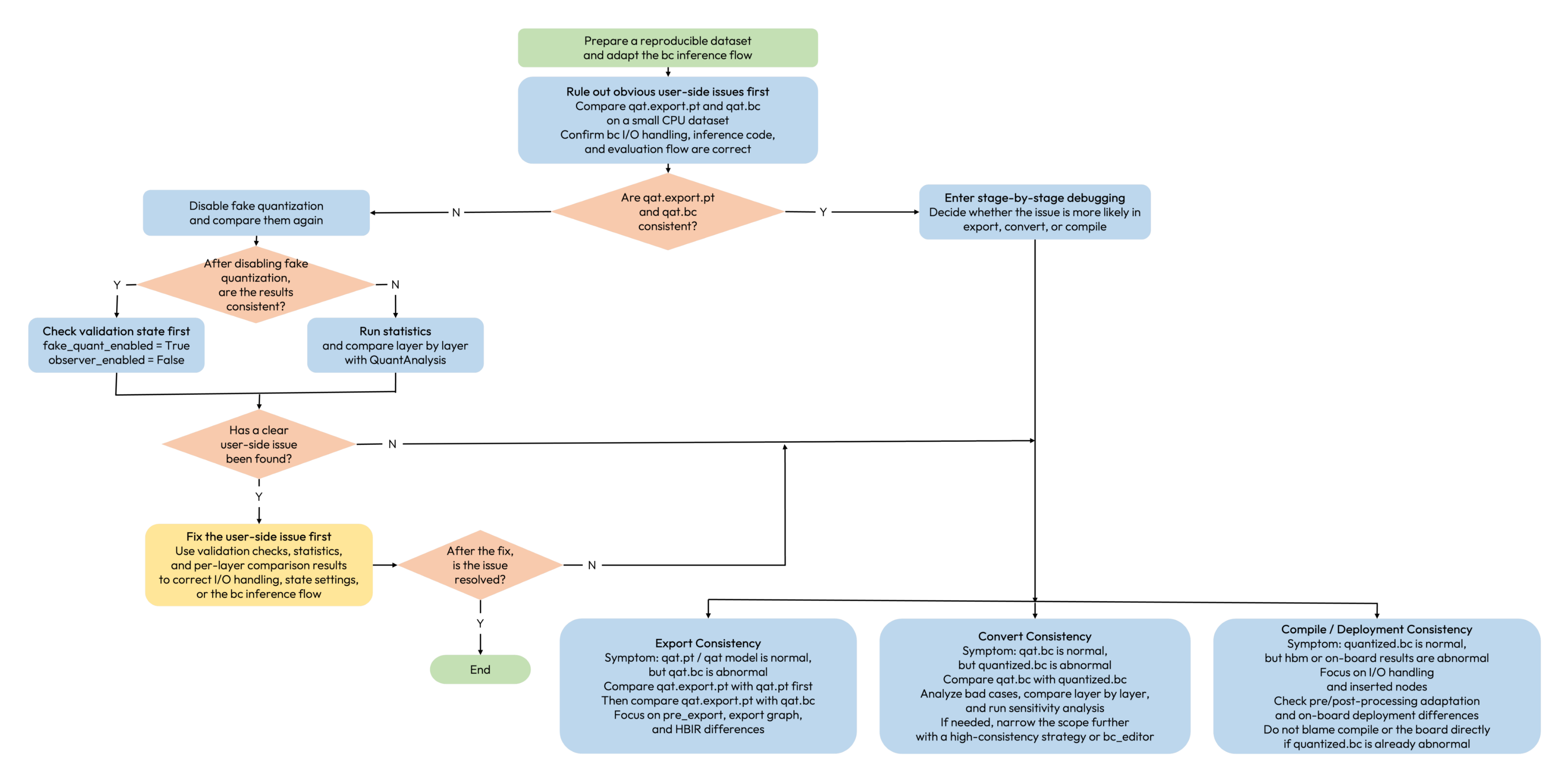
Before formally starting consistency troubleshooting, it is recommended that you first compare qat.export.pt and qat.bc on CPU with a small dataset to verify whether the bc inference flow is correct.
The purpose of this step is not to directly locate problems in export, convert, or compile, but to first rule out obvious user-side issues and confirm that there are no obvious errors in the input/output handling, inference code, and evaluation flow later used to compare the bc model.
If their accuracy is inconsistent, it is recommended that you first disable fake quantization and then re-check whether qat.export.pt and qat.bc are consistent:
After disabling fake quantization, two common situations may occur:
- If the results become consistent after disabling fake quantization, the first priority is usually to check whether the fake quant and observer states before disabling were in validation mode.
- If the results are still inconsistent after disabling fake quantization, it is recommended that you first run statistics on
qat.export.ptandqat.bcseparately, and then perform per-layer comparison.
If this step has already revealed obvious input/output handling differences, state-setting problems, or errors in the bc inference flow, it is recommended that you fix these user-side issues first before continuing with the stage-by-stage analysis below.
Quickly Judging Which Stage Is More Likely to Cause the Issue
In actual troubleshooting, it is recommended that you do not start by running the full toolchain immediately. Instead, first use the observed phenomenon to judge which stage is more likely to contain the problem.
| Observed Symptom | Stage to Suspect First | What to Do First |
|---|---|---|
qat.pt / qat model is normal, but qat.bc is abnormal | Export stage | Compare qat.export.pt with qat.pt first, then compare qat.export.pt with qat.bc |
qat.bc is normal, but quantized.bc is abnormal | Convert stage | Compare qat.bc and quantized.bc directly, then perform bad-case analysis, per-layer comparison, and sensitivity analysis |
quantized.bc is normal, but hbm is abnormal | Compile / deployment stage | Focus on input/output handling, inserted nodes, pre/post-processing adaptation, and on-board deployment differences |
If you still cannot make a quick judgment, it is recommended that you at least complete the following two checks first:
-
Confirm that
plugin / profiler / hbdkhave all been upgraded to the currently recommended versions. -
Verify whether the accuracy of
quantized.bcmeets expectations before deciding whether to continue investigating in the compile or on-board direction.
Recommended Troubleshooting Order
If you are still unsure where to start, it is generally recommended to proceed in the following order:
-
First determine which of
qat.ptandquantized.bcis currently the more stable accuracy baseline. -
Rule out obvious user-side issues first, and then use the “quick judgment” table to identify the stage where the issue is more likely to occur.
-
If it is an export issue, check
pre_exportfirst, and then checkqat.export.ptversusqat.bc. -
If it is a convert issue, compare
qat.bcwithquantized.bcfirst, and then perform sensitivity analysis. -
If it is a compile / deployment issue, first confirm that
quantized.bcis normal, and then review input/output handling and on-board deployment differences. -
If conventional methods still cannot locate the issue, continue narrowing the scope with
bc_editor.
If you are still unfamiliar with artifacts such as model_check_result.txt, fx_graph.txt, compare_per_layer_out_0.txt, and output_xxx_case_xxx_sensitive_ops.txt during troubleshooting, it is recommended that you continue reading the Debug Artifacts Interpretation chapter.
Export Consistency
When qat.pt is normal but qat.bc does not meet expectations, the export stage should usually be suspected first.
The most common sources of this type of issue include error introduced by LUT-to-fixed-point conversion, inconsistency between the export graph and the training graph, and implementation differences of certain operators after export.
Typical Symptoms
-
The evaluation accuracy and multi-frame visualization results of
qat.ptare normal, butqat.bcis abnormal. -
qat.export.ptis already abnormal, which indicates that the issue most likely begins at thepre_exportstep. -
qat.export.ptis normal, butqat.bcis abnormal, which suggests that the problem is more likely introduced by the export graph or HBIR representation.
Analysis Prerequisites
-
qat.ptmust be set toevalfirst, and switched toFakeQuantState.VALIDATION. -
When comparing
qat.pt,qat.export.pt, andqat.bc, the input content should be kept as consistent as possible. -
If the torch and bc models cannot directly accept the same input format, the input content on both sides should still be kept consistent except for format differences.
Troubleshooting Steps
-
First check whether
qat.export.ptis normal.In other words, do not compare
qat.ptandqat.bcdirectly at the beginning. Instead, first convertqat.pttoqat.export.ptwithpre_export, and determine whether obvious error has already been introduced at the LUT-to-fixed-point step.-
If
qat.export.ptis already abnormal, first determine whether the issue is introduced by LUT-to-fixed-point conversion. -
If
qat.export.ptis normal butqat.bcis abnormal, first determine whether the issue comes from export-graph inconsistency or the HBIR export stage.
-
-
If
qat.export.ptis already abnormal, first locate whether it is a LUT issue.In this case, it is recommended to use
QuantAnalysis(qat_pt, qat_export_pt, "pre_export")for per-layer comparison and sensitivity analysis, and prioritize identifying which LUT-related operators have introduced obvious error.
- If conventional methods still cannot narrow down the scope, you can continue using
pre_exportfor segmented localization.
-
If
qat.export.ptis normal butqat.bcis abnormal, continue by comparingqat.export.ptandqat.bc.In this case, it is recommended to use
QuantAnalysis(qat_export_pt, qat_bc, "export")for bad-case localization and per-layer comparison, to confirm whether the issue comes from the export graph, HBIR representation, or implementation differences in certain exported operators.
-
If you suspect that the export graph itself is inconsistent with the training graph, go back and review the Prepare artifacts.
In particular, when there are cases such as
if deploy, dynamic branches, or changed loop counts, it is recommended to first usefx_graph.txtandmodel_check_result.txtto confirm whether the graph structure is consistent with expectations.
Tools Used
-
pre_exportUsed to split the export stage into two steps, so that you can first determine whether the issue has already appeared during LUT-to-fixed-point conversion.
-
QuantAnalysisUsed for bad-case localization, per-layer comparison, and sensitivity analysis. The two most common usages in the export stage are:
-
QuantAnalysis(qat_pt, qat_export_pt, "pre_export") -
QuantAnalysis(qat_export_pt, qat_bc, "export")
-
-
fx_graph.txt/model_check_result.txtUsed to help determine whether the graph structure before and after export, as well as the Prepare result, are consistent.
Artifacts to Keep
-
qat.export.pt -
qat.bc -
compare_per_layer_out_0.txt -
output_xxx_case_xxx_sensitive_ops.txt / .pt -
model_check_result.txt -
fx_graph.txt
If you still cannot determine where the issue lies, it is recommended that you at least keep the above artifacts and the corresponding bad cases, so that further analysis or technical-support feedback can continue.
Convert Consistency
When qat.bc is normal but quantized.bc does not meet expectations, the convert stage should usually be suspected first.
The essence of this type of issue is that after the model changes from pseudo-quantized representation to true fixed-point representation, implementation differences of certain operators are amplified.
For the J6E/M platform, if you mainly encounter deviation in the convert or deployment stage, you can also consider the high-consistency QAT strategy.
Although this strategy needs to be set before prepare, it is mainly used to reduce deviation in the convert / deployment stage, so introducing it in this section makes it easier to understand.
High-Consistency QAT Strategy
If your current issue mainly appears as follows:
-
qat.pt / qat.export.pt / qat.bcare basically normal, butquantized.bcstarts to lose accuracy. -
It has already been largely confirmed that the issue is not caused by LUT-to-fixed-point conversion, but is more like a consistency deviation before and after convert.
-
You are using the J6E/M platform and want to improve convert consistency in a lower-cost way first.
Then the high-consistency strategy is usually worth evaluating first.
Conversely, if the issue mainly occurs in the pre_export or export stage, for example when LUT-to-fixed-point conversion itself has already introduced obvious error, then the high-consistency strategy will usually not help directly. In that case, you should still return to export-stage analysis first.
-
Due to the limited floating-point computing capability of the J6E/M platforms, training-deployment consistency issues are more likely to occur. To address such issues, we provide the high-consistency QAT strategy. This strategy is only applicable to the J6E/M platform and is not recommended for other platforms.
-
Before using it, please ensure that
hbdkis no lower than4.4.2, andpluginis no lower than3.1.2. -
For scenarios where retraining is not performed, only level 0 is effective. Level 1 / level 2 require retraining after the setting is applied.
-
The high-consistency QAT strategy does not affect LUT-to-fixed-point conversion. It mainly affects consistency before and after convert.
The high-consistency QAT strategy is encapsulated in horizon_plugin_pytorch.qat_mode.ConsistencyStrategy, and is used as follows:
Three strategy levels (0 - 2) are currently supported. The higher the level, the better the consistency, but QAT accuracy may be slightly affected. Therefore, we do not recommend using the highest level from the beginning. We recommend trying level 1 first. In most cases, it has no effect on QAT accuracy and can bring positive benefits to both performance and consistency.
In the table below:
-
POT (Power Of Two) scale can be simply understood as a scale whose value is constrained to a power-of-two form.
-
A_POT (activation_pot) means that activation uses POT scale, while weight still uses the statistical scale strategy.
Based on the current implementation, their differences can be understood as follows:
| level | Main Characteristics | More Suitable Scenarios |
|---|---|---|
| 0 | Keeps the standard statistical scale strategy, does not enable the high-consistency operator path, but enables high-precision qpp and disables requantize fuse. Here, high-precision qpp can be understood as retaining higher-precision intermediate results during quantization-parameter propagation as much as possible, so that less additional error is introduced while parameters are being passed through the graph. Disabling requantize fuse is used to avoid fusing requantization-related logic into neighboring operators too early, which helps reduce the deviation caused by different fusion behavior before and after convert | Suitable when training has already been completed and retraining is not desired, but you still want to improve convert consistency as much as possible |
| 1 | Switches compute_scale_strategy to A_POT, which means using POT scale for activation while still keeping the weight side on the statistical scale strategy. It also enables the high-consistency path for resize / gridsample / mean / mod_centered and disables requantize fuse. The core purpose is to move activation-side scale to a form that is closer to convert behavior, so that the deviation caused by activation-scale jitter and changing clipping boundaries can be reduced | The recommended first option when convert consistency issues are encountered on J6E/M |
| 2 | Further switches compute_scale_strategy to POT, which means both activation and weight use POT scale. It also keeps the high-consistency path for resize / gridsample / mean / mod_centered enabled and disables requantize fuse. Compared with level 1, the main additional change is that the weight side also switches to POT scale. Empirically, this usually further reduces the probability of the residual one-scale-level error of Linear / Conv during convert | A further option for improving consistency when level 1 still cannot meet the requirement |
For POT / A_POT in the table below, it is also helpful to understand them this way first:
-
They are primarily used to make the scale form closer to actual convert-side behavior, so their main role is in training-deployment consistency rather than directly replacing regular accuracy tuning methods.
-
Better consistency does not necessarily mean that dataset accuracy will improve at the same time. Whether they actually bring benefit should still be judged by the evaluation results of
quantized.bc / hbmand the reproducibility of bad cases. -
POT / A_POTshould also not be understood by default as performance-optimization switches. They are more consistency-oriented strategies, and whether they bring extra benefit or cost should still be confirmed on the actual model and deployment result.
If you only want to capture the core difference among these three levels, you can understand them this way: level 0 mainly reduces the extra deviation introduced by quantization-parameter propagation and requantize fusion without retraining. Level 1 mainly uses POT scale for activation while keeping the weight side on the statistical scale strategy. Level 2 further switches the weight side to POT scale on top of level 1, and continues suppressing the remaining consistency error of key operators such as Linear / Conv.
As shown in the table above, in practice:
-
Level 0 is more like a remedial solution when retraining is not possible.
-
Level 1 is more like the recommended regular option to try first.
-
Level 2 is more like an enhanced option for further improving consistency on top of level 1.
When using it, it is also recommended that you note the following:
-
If the current model did not originally enable the high-consistency strategy and you do not want to retrain, then you can only try level 0 and set the consistency strategy level to 0 before preparing the model.
-
If you plan to formally use level 1 / level 2, please re-run the subsequent training process after setting the strategy, rather than applying it directly on top of an existing checkpoint.
-
Even if the high-consistency strategy is enabled, it is still recommended to verify results based on
quantized.bc / hbm, rather than only checking whether the training-side model has improved.
When using it, the following phenomena can also serve as reference:
-
Under level 1,
Linear / Convin the convert stage may still have an error of about one scale level, while other operators are usually easier to align. -
Under level 2, the probability of such error in
Linear / Convusually drops further to a very low level. -
For
Linear / Conv, if the bias is removed, level 2 usually makes it easier to achieve zero or near-zero error in the convert stage.
These phenomena are better used as reference for understanding the effect of the strategy rather than as absolute judgment criteria. In real projects, it is still recommended to rely on dataset evaluation results and reproducibility of bad cases.
If you want to further understand the specific implementation differences among level 0 / 1 / 2, such as which scale strategies, high-consistency switches, and export behaviors are adjusted at each level, it is recommended that you confirm them against the source code of the current version. These implementation details may vary across versions.
Typical Symptoms
-
The evaluation accuracy or visualization results of
qat.bcare normal, butquantized.bcis abnormal. -
qat.export.ptandqat.ptdo not show obvious issues, butquantized.bcbegins to lose accuracy compared with the previous two.
Analysis Prerequisites
-
The accuracy of
qat.bcitself should already be confirmed as normal. Otherwise, do not enter convert-stage troubleshooting directly. -
When comparing
qat.bcandquantized.bc, the same input and post-processing must be used. -
It is recommended to first reproduce the consistency issue before and after convert stably on the dataset, and then start bad-case and per-layer analysis.
Troubleshooting Steps
-
First confirm that the abnormality of
quantized.bcis stable and reproducible.If the post-convert accuracy fluctuation is unstable, or the bad case is not reproducible, it is recommended that you first go back to the dataset and the validation flow to ensure that the comparison process itself is reliable.
-
Perform bad-case localization and per-layer comparison between
qat.bcandquantized.bc.This is the most critical step in convert-stage troubleshooting. It is recommended to use
QuantAnalysis(qat_bc, quantized_bc, "convert")to find bad cases first, and then check the per-layer comparison results.
-
Then combine with
qat.export.ptfor sensitivity analysis.In the convert stage, sensitivity analysis is still usually recommended to be based on the more analyzable torch-side
qat.export.pt, while reusing the bad cases found during comparison ofqat.bcandquantized.bc.
- If it has already been confirmed that the issue mainly comes from convert, but conventional per-layer analysis still cannot narrow the scope, then consider using more fine-grained tools for segmented localization.
Tools Used
-
QuantAnalysisThe most common usages in the convert stage are:
QuantAnalysis(qat_bc, quantized_bc, "convert"): find bad cases and run per-layer comparisonQuantAnalysis(qat_export_pt, quantized_bc, "convert"): run sensitivity analysis based on the same bad case
-
High-consistency QAT strategy
For the J6E/M platform, if you are mainly encountering consistency issues before and after convert, you can first evaluate whether a high-consistency strategy is needed to reduce convert-stage deviation.
-
bc_editorWhen conventional analysis cannot locate the issue, you can edit the bc model and move some operators back to CPU execution, so as to further narrow the scope of convert-stage problems.
Artifacts to Keep
-
quantized.bc -
compare_per_layer_out_0.txt -
output_xxx_case_xxx_sensitive_ops.txt / .pt -
badcase_report.html,all_badcase_info.pt, or input samples that can stably reproduce the issue
If you still cannot determine where the issue lies, it is recommended that you at least keep the above artifacts and the corresponding bad cases, so that further analysis or technical-support feedback can continue.
Compile / Deployment Consistency
When quantized.bc is already normal, but hbm or on-board results do not meet expectations, the issue should usually be suspected in the compile or deployment-adaptation stage first.
Problems in this stage are often no longer limited to numerical implementation differences inside the model, but may also involve input/output handling, inserted nodes, pre/post-processing adaptation, and on-board deployment methods.
Typical Symptoms
-
quantized.bcaccuracy is normal, buthbmis abnormal. -
hbmresults on x86 are inconsistent with on-board results. -
Results start to deteriorate after inserting pre-processing nodes, deleting head/tail nodes, or integrating with on-board deployment.
Analysis Prerequisites
-
Before entering compile / deployment troubleshooting, it must first be confirmed that
quantized.bcitself is normal. -
Ensure that input/output definitions, layout, pre/post-processing, and padding / alignment strategy remain consistent before and after compile.
-
If on-board results are abnormal, it is recommended to distinguish whether
hbmsimulation is already abnormal, or whether only the on-board integration is abnormal.
Troubleshooting Steps
-
First confirm whether the issue really occurs after compile.
In other words, first make sure that
quantized.bcis normal. Ifquantized.bcis also abnormal, you should go back to the convert stage for further troubleshooting. -
Check whether input/output handling is consistent.
The most common issues at this stage are not in the operators themselves, but in inconsistent input/output forms, pre/post-processing, inserted nodes, deleted nodes, and deployment API adaptation.
-
If pre-processing node insertion, head/tail node deletion, or other graph modifications are involved, it is recommended to compare results before and after the modification separately.
-
If on-board results are abnormal but x86 simulation is normal, first suspect differences in on-board integration, data preparation, or running mode, rather than directly suspecting the model conversion itself.
Tools Used
-
hb_verifieror equivalent comparison methods: used to compare consistency between HBIR and HBM, and between x86 and on-board results. -
Deployment-side logs, input/output dumps, and on-board inference scripts: used to confirm whether the issue comes from deployment integration rather than the model itself.
Artifacts to Keep
-
quantized.bc -
hbm -
Compile configuration
-
On-board input/output samples
-
Pre/post-processing inputs, outputs, and logs for the corresponding bad case
If you still cannot determine where the issue lies, it is recommended that you at least keep the above artifacts and the corresponding bad cases, so that further analysis or technical-support feedback can continue.
When Conventional Analysis Still Cannot Locate the Issue
If you have already completed bad-case analysis, per-layer comparison, and sensitivity analysis, but still cannot determine which operators in the convert stage are responsible, you can continue using bc_editor for segmented localization.
bc_editor is located at horizon_plugin_profiler/bc_editor/bc_editor.py, and configuration examples are usually provided in the same directory.
Its core idea is:
-
First view the textual representation of
qat.bcand locate the HBIR IDs of suspicious operators. -
Use the configuration file to delete fake quantization in a specified range.
-
Re-generate the modified bc and then run convert again.
-
Compare the behavior of
quantized.bcbefore and after editing, to determine which operators noticeably improve consistency when moved back to CPU.
An example is as follows:
By comparing quantized.bc before and after editing, you can further identify which operators noticeably improve consistency after being moved back to CPU.