

ONNX Model Quantization Principle and Process
Overview
The process of the model from training to conversion to running on the development board is shown below:
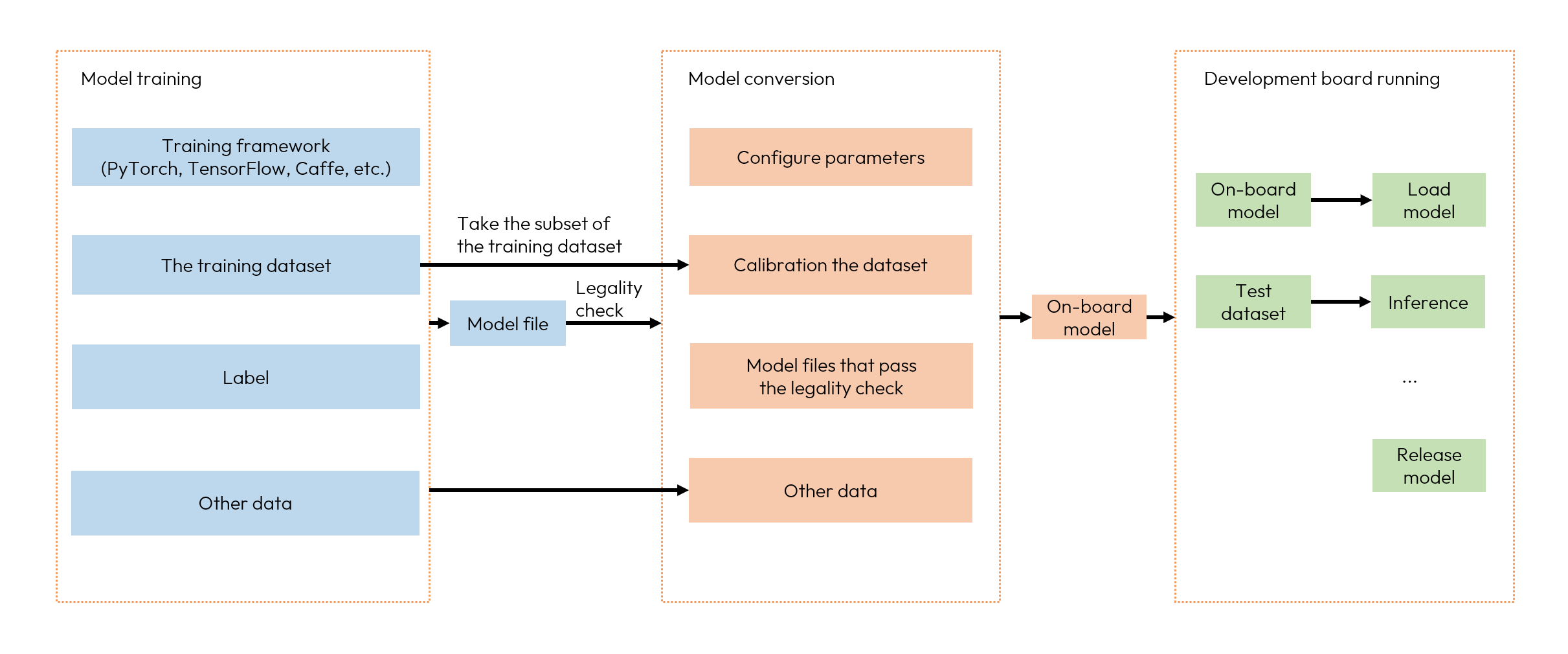
Model Training: It is the process of getting a usable model by using public deep learning frameworks such as TensorFlow, PyTorch, Caffe, etc. The trained model will serve as the input for the model conversion stage. The toolchain does not provide training-related libraries or tools. For the detailed supported public learning frameworks, please refer to the instructions in the Floating-point Model Preparation.
Model Conversion: Taking the floating-point model obtained from model training as input, this stage transforms floating-point models into models that can run efficiently on the Horizon computing platform through important steps such as model structure optimization, model calibration quantization and model compilation. For more information, please refer to Model Quantization and Compilation section.
Embedded Application development: The toolchain supports application development in both X86 simulation environment and real embedded environment. In case you are not convenient to use the development board, you can debug the program and verify the calculation results in the simulation environment. In order to reduce the cost of simulation verification, the toolchain provides the exact same simulation library interface as the embedded interface, only with different compilation configurations. For more information, please refer to Embedded Application Development section.
ONNX Model Quantization Terminology and Artifact Reference
Before diving into each stage, use the table below to align on the key terminology and artifacts involved in the ONNX model quantization pipeline:
ONNX Model Quantization Full-pipeline Stage Table
Combined with the Horizon toolchain, the ONNX model quantization pipeline is split into the following stages in actual usage order: Floating-point Model Preparation → Model Checking → Calibration Data Preparation → quant_config Configuration (yaml: Model Quantization and Compilation, json: quant_config specification) → Model Quantization and Compilation → Performance Evaluation → Accuracy Evaluation → Deployment Consistency Verification. The overall flowchart is shown below:
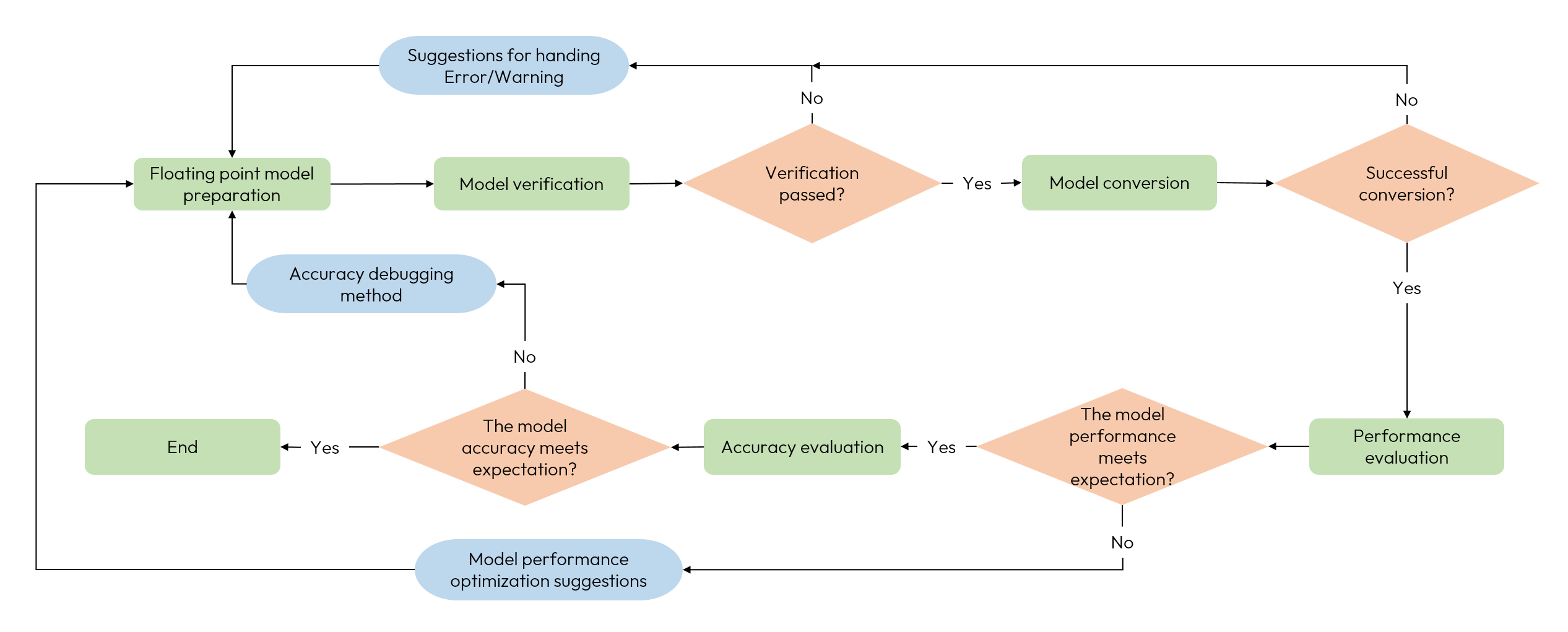
The target, input, output, checkpoints and troubleshooting jumps of each stage are summarized in the following table:
| Stage | Input | Main Output / Artifacts | Required | Key Checks | Where to Look on Failure |
|---|---|---|---|---|---|
| Floating-point Model Preparation | Training-framework checkpoint | Valid ONNX / Caffe model | Yes | Whether HBRuntime forward output matches the original framework, ir_version ≤ 9, 10 ≤ opset ≤ 19 | Refer to Floating-point Model Preparation section and check the export parameters |
| Model Checking | Original ONNX / Caffe | hb_compile.log, operator deployment list | Yes | Whether CPU operators or Unsupported OPs exist | Refer to Model Checking section and the Operator Support Constraint List section |
| Calibration Data Preparation | Training / validation samples | .npy calibration data | Yes | Whether preprocessing matches floating-point training, sample count 20~100, shape aligned with input_shape | Refer to Data Preparation section |
quant_config Configuration (yaml: Model Quantization and Compilation, json: quant_config specification) | Floating-point model + platform | Conversion configuration yaml | Yes | Whether the platform and precision template match, and whether explicit fallback is configured for Resize / GridSample, etc. | For yaml parameters, refer to the Model Quantization and Compilation section, for json fields and platform empirical templates, refer to the quant_config specification section |
| Model Quantization and Compilation | Floating-point model + yaml + calibration data | 7 model artifacts + 5 info files | Yes | Whether output-node Calibrated Cosine / Quantized Cosine looks normal. Note that similarity does not have an absolute direct correlation with accuracy, but values below 0.8 generally indicate noticeable accuracy loss | Refer to Model Quantization and Compilation section for artifact interpretation, and refer to ONNX Model Deployment Consistency Analysis section for consistency analysis |
| Performance Evaluation | *.hbm / quantized.bc | .html / .json static evaluation files, on-board hrt_model_exec output | Yes | Whether CPU operators exist, consistency between static estimation and on-board results | Refer to Model Performance Evaluation section and the Performance Tuning Guide section |
| Accuracy Evaluation | quantized.bc / *.hbm | Dataset accuracy report | Yes | Whether the fixed-point vs. floating-point accuracy gap meets expectations | Refer to Model Accuracy Evaluation section and the Accuracy Tuning Guide section |
| Deployment Consistency | quantized.bc / *.hbm | On-board results | Yes | Whether the on-board result matches quantized.bc | Refer to ONNX Model Deployment Consistency Analysis section |
Preliminary Notes
Before entering the detailed stages, please note the following:
-
The quantized fixed-point model represents the final on-board accuracy.
quantized.bcandhbmare theoretically consistent in accuracy, the final accuracy shall be based on eitherquantized.bcorhbm. -
The recommended
quant_configstrategy varies by platform. Please refer to the unified Platform Difference Description section for details. -
If the floating-point accuracy itself does not meet the target, please first go back to the training framework for investigation instead of tuning during the quantization stage. The ONNX model quantization pipeline cannot fix issues that originate from the floating-point model itself.
-
Only when the ONNX model quantization accuracy remains below target for a long time should you consider switching to the pytorch QAT pipeline. The two pipelines are not replacements for each other.
- In general, you can get a qualified runtime model after model conversion. However, make sure that the performance and accuracy of the model are in line with the application requirements. Horizon Robotics strongly suggest you that each conversion shall be followed by the evaluation steps of performance and accuracy.
- The model conversion process will generate onnx models, which are intermediate products and only facilitate you to verify the accuracy of the model. Therefore, the compatibility between versions is not guaranteed. When using the evaluation script in the sample to evaluate the onnx model in a single image or on a test set, please use the onnx model generated by the current version of the tool.
Model Conversion Process Detailed Explanation
So how to convert the floating-point models trained by using the opensource ML frameworks (such as Caffe, TensorFlow, PyTorch, etc.) to the Horizon hardware supported fixed-point models?
In most cases, the threshold values and weights of the floating-point models obtained from either the opensource ML frameworks or trained by yourself are floating-point numbers (float32) and each number occupies 4 bytes.
However, by converting the floating-point numbers to lower-bit computational numbers, thus the computation operations in the embedded runtime can be dramatically reduced.
Therefore, it brings significant performance boost by converting the floating-point models to lower-bit computational models with no loss or very small loss.
Typically, model conversion can be divided into the following steps:
-
Check if there are unsupported OPs in the models to be converted.
-
Prepare 20~100 images for calibration use at the conversion stage.
-
Convert the floating-point models to fixed-point models using the floating-point conversion tools.
-
Evaluate the performance and accuracy of the converted models to ensure that there isn't huge difference in model accuracy before and after the conversion.
-
Run models in simulator/dev board to validate model performance and accuracy.
Three Usage Modes of hb_compile
The model checking, quantization and compilation tasks in the steps above can be performed by the hb_compile tool. For the tool's usage and detailed configuration/parameters, please refer to the Model Quantization and Compilation section. Under the ONNX model quantization pipeline, you can choose from the following three usage modes based on your target:
Model Checking
Before converting the floating-point models into the fixed-point models, we should check if there are Horizon hardwares unsupported OPs in the floating-point models using the hb_compile tool.
If yes, the tool will report the unsupported OP(s). The usage of the hb_compile tool for checking the model can be found in Model Checking section.
More information about Horizon hardware supported OPs, refer to Toolchain Operator Support Constraint List.
Calibration Image Preparation
When converting the floating-point models, you need to prepare 20~100 images for calibration use at the calibration stage.
Input image formats may vary by input type and layout. In this stage, because both original (JPG, etc.) and the processed images are valid, you can either feed the calibration images used in the model training or feed your own processed images.
The format of the calibration dataset should be npy .
We recommend you preprocessing the calibration images on your own, you need to complete the operations such as image channel (BGR/RGB), data layout (NHWC/NCHW), and image resizing/padding (Resize&Padding). The tool will then feed the images to the calibration stage after loading them as npy format.
Taking Resnet50 as an example, the required transformer operations are as follows:
Model Conversion
When you confirm that the floating-point model can be successfully converted, you can then convert the floating-point model to a Horizon hardware supported fixed-point model by using the hb_compile tool.
This process requires you to pass a configuration file(*.yaml) containing conversion requirements. For specific configuration file settings and the insturctions of each parameter, refer to the descriptions in sections Specific Parameter Information and Configuration File Template .
When the model conversion process ends, it also prints the level of similarity between the floating-point model and fixed-point model to the log, you can therefore judge the similarity before and after conversion according to the Quantized Cosine field.
If the value of Quantized Cosine is very close to 1, so the performance of the fixed-point model should be very close to that of the floating-point model before the conversion.
The CosineSimilarity in the log refers to the very first image in the calibration images, it cannot fully represent the model accuracy before and after the conversion.
After a successful model conversion, the model outputs, information files and the model static performance evaluation files for each phase will be generated in the generated folder (model_output by default),
where the model output files will be used in subsequent phases.
- You can use the
03_build.shscript in thesamples/onnx_ptq/resnet50_mnistexample to experience thehb_compiletool doing the model quantized compilation. - If you want to learn more about the model conversion workflow, please read Model Quantification and Compilation .
Single Image Inference
The accuracy of the fixed-point model generated by the floating-point conversion must be evaluated.
You should have good understanding of the input/output structures of the model. You should also be able to accurately preprocess the input images of the model, postprocess the model outputs, and write the model execution scripts on your own.
You can refer to the sample code in 04_inference.sh of the samples/onnx_ptq/resnet50_mnist example in the delivery package.
The code logic is as follows:
Once the script used, you can verify its own accuracy by inputting a single image.
For example, the input to this script is a picture of a zebra,
preprocessing the image data from rgb to the data type configured by input_type_rt(for informaiton about intermediate types, refer to the Model Conversion Interpretation ).
Then, infer the model by passing the above image data by using the HB_HBIRRuntime command, post-processing after inference, and finally print out 5 of its most likely types.
The output of the script is shown as follows with the most possible class being label: 340:
label uses the ImageNet label classes, where the corresponding class of 340 is zebra, so the inference result is correct.
Model Accuracy Verification
It's insufficient to determine the model accuracy by single image inference, so you still need to use scripts to evalute the model accuracy after the conversion.
To do so, you need some coding work to enable the model to loop the image inference and compare the inference results with standard results to get model accuracy results.
In model accuracy evaluations, images must be pre-processed and the model data must be post-processed, so here we provide a Python script as a sample.
The logic of this script is the same as that of single image inference, yet it must run on the entire dataset.
The script can evaluate the model output results and generate evaluation results.
You can refer to the sample code in 05_evaluate.sh of the samples/onnx_ptq/resnet50_mnist example in the delivery package, which calls the eval.py evaluation script.
Because it takes a long time to run the script, eval.py provides a --parallel_num option to specify the number of parallel processes, which defaults to 1. You can append this option to the command to raise the parallelism as appropriate.
After the execution of this script, you can get the accuracy of the converted fixed-point model from the output of the script.
- Model accuracy may vary slightly due to the differences of operating systems and dependencies.
- Model accuracy may vary slightly by iteration.
[Reference] Supported Calibration Methods
We currently support the following calibration methods:
- Default
Default is a strategy that automatically searches the calibrated quantization parameters to obtain a relatively good combination.
- Mix
Mix is a search strategy that integrates multiple calibration methods, which automatically identifies quantization-sensitive nodes, selects the best from a group of calibration methods at node granularity, and finally build a hybrid calibration method absorbing the advantages of multiple calibration methods.
- KL
KL learns from the Solution proposed by TensorRT, uses the KL entropy value to traverse the data distribution of each quantized layer, and determines threshold value by searching for the lowest KL entropy value.
As this method can cause more data saturation and smaller data quantization granularity, it more suitable than max for those neural network models with more concentrated data distribution.
- Max
Max refers to a calibration method that automatically selects the max value in quantized layer as the threshold.
This method can cause oversized quantization granularity. However, it also causes fewer saturated points than the KL method, which makes it suitable for those neural network models with more discrete data distribution.
[Reference] OP List
For more information about the operators and corresponding constraints currently supported by Horizon Algorithm Toolchain, please refer to Toolchain Operator Support Constraint List.